Wyze Indoor Cam Pan Won’t Connect? Setup and Firmware Fixes

SecurityCompass HQ
Quick answer
If your Wyze Indoor Cam Pan won’t connect, start with its 2.4 GHz network and Bluetooth setup checks below. If it already connects well enough to update, check for firmware 2.1.0.133, released October 12, 2026. Wyze lists fixes for setup failures involving certain routers, including WPA3 compatibility issues. A camera that cannot finish pairing may need setup troubleshooting before an app-based update is possible. Wyze release notes
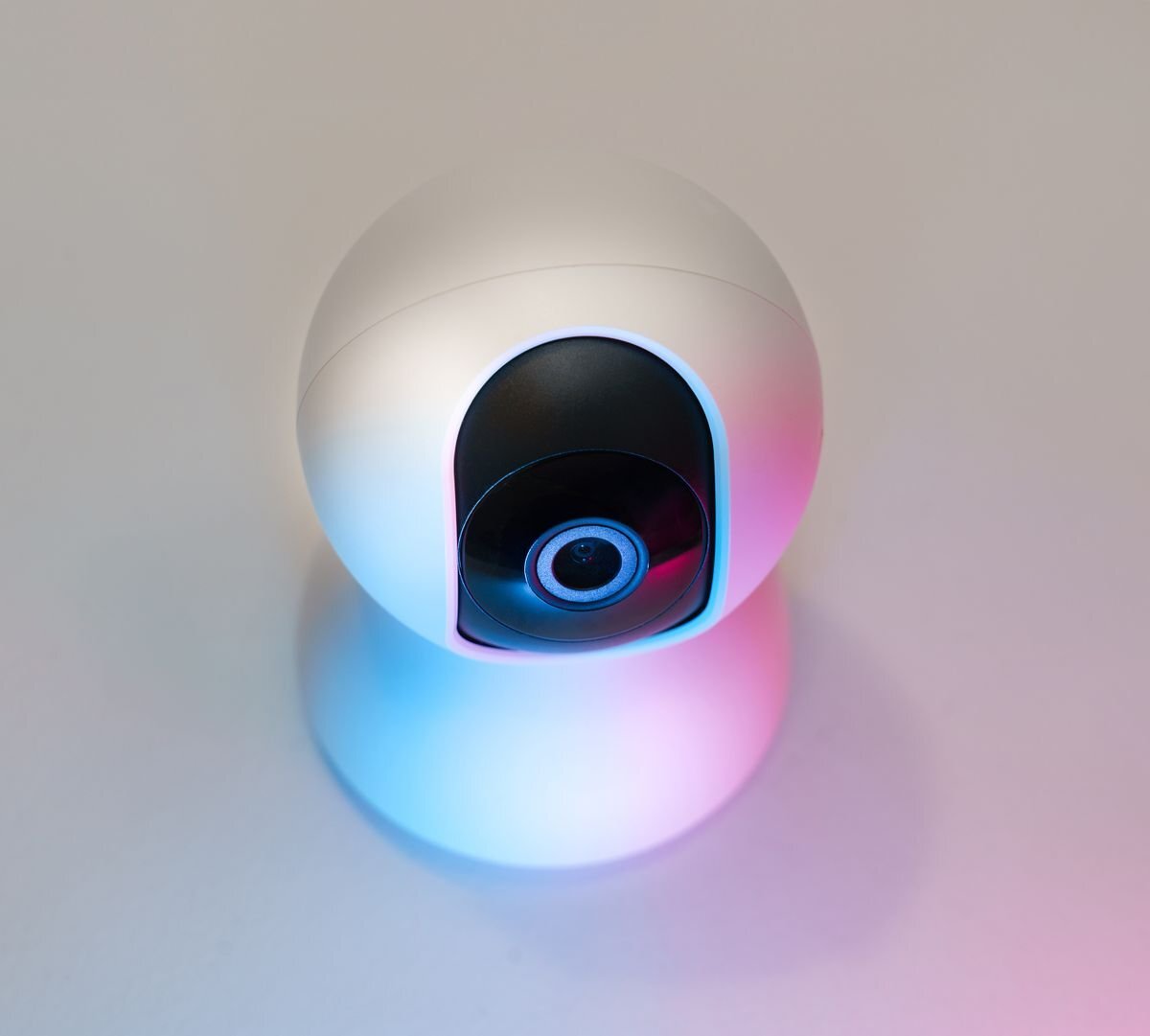
This guide covers the Wyze Indoor Cam Pan, the indoor-only 2K model sold on Wyze’s US site. Check the product name before following it: Cam Pan v3, Cam Pan v4, Duo Cam Pan and Solar Cam Pan have their own instructions and firmware. Product details
What the October 12 update addresses
Alongside router-specific setup fixes, version 2.1.0.133 improves Bluetooth and Wi-Fi handling during setup, addresses delayed status synchronization that could prevent setup, and fixes occasional restarts during web-interface viewing. These are Wyze’s documented changes; we have not tested their effectiveness on particular routers or verified availability on every device. Firmware changes
If the camera has never finished setup
- Check power and select the exact camera. Use the supplied cable and adapter. In the Wyze app, follow Home > + > Device > Cameras > Pan and Tilt Camera > Wyze Indoor Cam Pan.
- Start pairing with a single press. Follow the app’s Begin Setup prompts. If the camera does not say “ready to connect,” single-press SETUP under the lens. Wyze says this single press does not reset the camera, erase data or unbind it. Official setup guide
- Check the phone and network. Update the Wyze app through your phone’s app store. Enable Bluetooth access for Wyze and the required location permission; Wyze lists While Using the App as an option and calls for Precise Location on iOS. Connect your phone to the same 2.4 GHz network you select during setup. This camera cannot join a 5 GHz network.
- Check credentials and distance. Confirm the Wi-Fi name, capitalization and password. Keep the phone and camera about 6–10 feet from the router for the attempt. If pairing still fails, disconnect the camera’s power for 5–10 seconds and reconnect it, provided no firmware update is underway. Setup troubleshooting
No status light? Check the cable connection and try another working outlet before treating this as a Wi-Fi problem. Power troubleshooting
If it was already set up but now disconnects
Open Account > Firmware Update in the Wyze app and install the update offered for this camera if it can connect. If it already runs 2.1.0.133, continue with the network checks rather than assuming another installation will help. Confirm the 2.4 GHz network works and move the camera nearer the router. A router reboot is another documented step, but it temporarily interrupts other devices using that network. Connectivity troubleshooting
Leave the camera powered during an update. If the app reports an update failure, Wyze recommends checking signal strength in the camera’s Settings > Device Info > Signal Strength. With fewer than two bars, move it closer to the router. Wyze also suggests force-closing the app, waiting ten minutes and then checking whether the update succeeded. Firmware-update troubleshooting
Use the status light as a clue
During setup, flashing red means ready to pair; alternating red and blue means connection is underway. Flashing blue can mean setup is finishing or firmware is updating. A solid red light alone does not establish a connection fault: after setup, it can indicate live viewing or recording. Model-specific light guide
Does the update guarantee WPA3 support
No. The release notes describe compatibility fixes with certain routers. Wyze’s published specifications still list WPA and WPA2, so the update is not evidence that every WPA3-only network works. Ask Wyze about your router model and security mode before changing network security settings. Specifications · Release notes
When to contact Wyze
If pairing remains blocked, the update is unavailable, or disconnects continue, use Wyze support. Have the exact camera name, router model, app version, available firmware version, light pattern and error message ready. Keep passwords out of your report. If multiple Wyze devices fail together, check Wyze’s service-status page before repeatedly changing individual cameras.
For broader context on camera services and separate alarm equipment, read our Wyze review.